



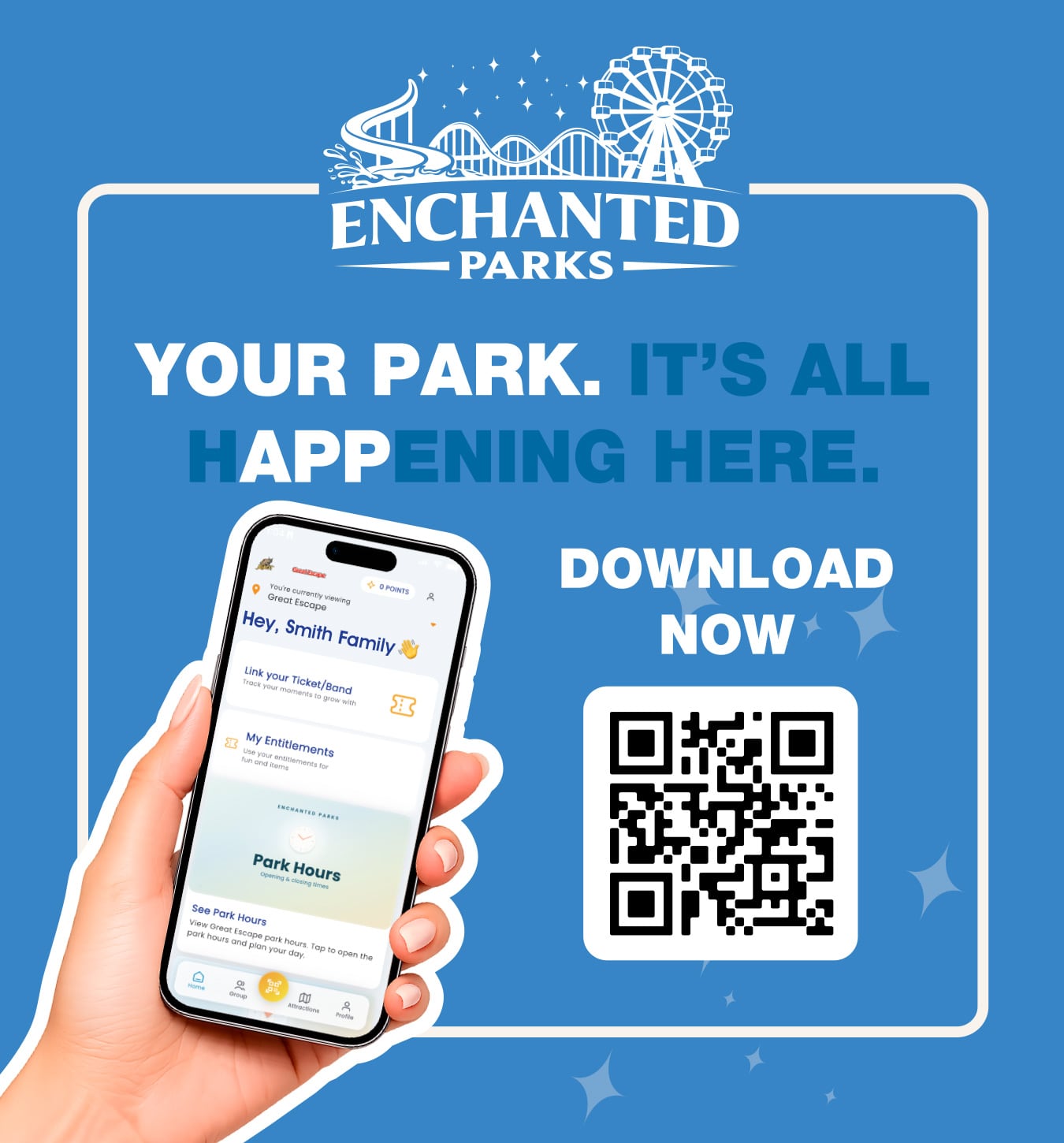
Get the Enchanted Parks App!


Introducing the Enchanted Parks app
Your new go-to for making the most of every park visit. Link your ticket or season pass, access your QR code at the gate, and explore attraction information—all from your phone. We’re just getting started, with more features coming in the future.
Enchanted Parks App FAQ’s
Getting Started
What is the Enchanted Parks app?
The Enchanted Parks app is your all-in-one companion for visiting any Enchanted Parks destination. Link your tickets or season pass, pull up your QR code at the gate, and check out attractions right from your phone. We're rolling it out with a focused set of features to start, adding more as we go.
Where can I download the app?
The app is available now on both the Apple App Store and Google Play Store. Just search "Enchanted Parks" and look for our app icon.
Which parks does the app work with?
The app works across all Enchanted Parks theme park destinations. Once you're logged in, you can select your home park and switch between parks anytime. Just tap the park name at the top of the home screen to pick a different location.
Account & Registration
Do I need an account to use the app?
Yes, you do need an account to use the app. Creating a free account lets you link your tickets or season pass, save your info, and access your QR code at the gate.
How do I create an account?
Open the app and choose "Create an account." You'll enter your email, agree to the terms and conditions, set a password, and fill in a few personal details.
I didn't get my verification email — what do I do?
Check your junk or spam folder first — it sometimes ends up there. If it's still missing after a few minutes, try resending the code from the app.
Can I switch parks after I've picked one?
Yes, you can switch parks after you’ve picked one. Tap the park name at the top of your home screen and choose a different park any time. No need to create a new account!
Linking Your Tickets & Passes
How do I link my ticket or season pass?
From the home screen, tap "Link your Ticket/Band." You can scan your season pass card, printed ticket, or wristband using your camera, or manually enter the ticket number if it's easier.
What if my ticket is on the same phone as the app?
No problem — just copy the ticket number and paste or type it into the box below the camera view instead of scanning.
Can I link more than one pass or ticket to my account?
Yes. Once a pass is linked to your account, it stays connected to that account — so if you and your family each have a pass, you can link them all to one account and everything will show up together when your QR code, pass, or ticket is scanned at the gate.
I have multiple passes linked. Will this cause any issues at the gate?
Not if everything is set up correctly. To keep things running smoothly at admissions, make sure every linked pass has a photo and complete guest information attached. Passes without a photo can slow things down at the gate, so it's worth double-checking this before your visit.
Using Your Entitlements & QR Code
What are my "entitlements"?
Entitlements are all the perks and access tied to your ticket or season pass — things like park admission, any add-ons, or special benefits included with what you purchased. Once your pass is linked in the app, you can see all your perks and access in one place.
Where can I see what my ticket or pass includes?
Open "My Entitlements" from the home screen to see everything connected to your account, including any additional tickets you've linked.
What's the difference between active and inactive entitlements?
Active entitlements are ready to use. Toggling to "inactive" shows anything expired, already redeemed, or canceled.
How do I filter entitlements to just the park I'm visiting?
Use the “show this site only” toggle in My Entitlements to see just what’s redeemable at your currently selected park.
How do I show my QR code at the gate?
Tap the QR icon in the bottom navigation bar. Present that code to park staff to redeem your tickets or benefits.
Attractions
How do I access attraction information in the app?
Tap the "Attractions" icon in the bottom navigation bar. This brings up a list of attractions at your selected park along with their current status, so you can quickly see what's open before you head over.
Can I narrow down the attraction list to find what I'm looking for?
Yes. From the Attractions screen, use the filters to sort by things like height requirement and thrill level, so you can find rides that fit your group without scrolling through everything.
Can I see more details about a specific attraction?
Yes. Tap into any attraction to see its description, open/closed status, and thrill level. Wait times aren't supported in the app yet, but it's something we're looking at for a future update.
Can I check ride status or wait times in the app?
Yes, you can check ride status in the app. Tap "Attractions" in the bottom navigation bar to see current attraction status, plus filters for height requirements, thrill level, and more. Wait times is not a feature currently supported in the Enchanted Parks app.
Park Hours, Map, & More
Can I find park hours in the app?
You can view park hours and our operating calendar from the Home Screen by tapping “Home” in the bottom left of any screen within the app. Select “See Park Hours” and a new window will open to the Park’s website with this information.
Can I find a park map in the app?
You can view the park map from the Home Screen by tapping “Home” in the bottom left of any screen within the app. Scroll to the section that says “Park Map” and select “Explore the Park Map”. A new window will open with this information.
Can I find attraction accessibility information in the app?
Our Attraction Accessibility Guide is located on the Home Screen. Navigate to it by tapping “Home” in the bottom left of any screen within the app. Scroll to the section that says “Attraction Accessibility” and select “Guest Accessibility Program”. A new window will open with this information.
Managing Your Profile
How do I update my personal information?
Tap the profile icon in the top right of the home screen, or the bottom right of any screen while using the app. Then, choose "Personal Information" to make edits to personal details like first and last name, age range, gender, and country.
How do I update the email address on my app account?
Tap the profile icon in the top right of the home screen, or the bottom right of any screen while using the app. Then, choose "Email Address" to make edits to the email address associated with your app account.
How do I change my App password?
Tap the profile icon in the top right of the home screen, or the bottom right of any screen while using the app. Then, choose "Password Settings" to make changes. You’ll need to enter your current password first.
If you are logged out of the app and can’t remember your password, select “Log In” and “Reset my Password”. Follow the prompts to create a new password.
What's Next
Is this everything the app will eventually do?
Not quite. We're launching with a core set of features first and plan to keep building based on guest feedback, so expect more functionality to roll out over time.